Are My Data in the Chart Always Actual?
One benefit of Data Jumbo is automatic chart updates when you modify data in Notion. This guide explains how the system works and what to expect.
How it Works
Once you connect your Notion workspace to Data Jumbo, the application gains permissions to interact with selected pages. Any modifications in Notion trigger automatic synchronization in Data Jumbo, updating corresponding charts. When databases exceed 500 rows, Data Jumbo automatically switches to cached mode without requiring manual action.
Use Cached Charts
Cached mode enables fast chart loading, particularly beneficial for databases with over 500 rows. It's especially useful when sharing charts on websites due to reduced loading times.
How Does That Work?
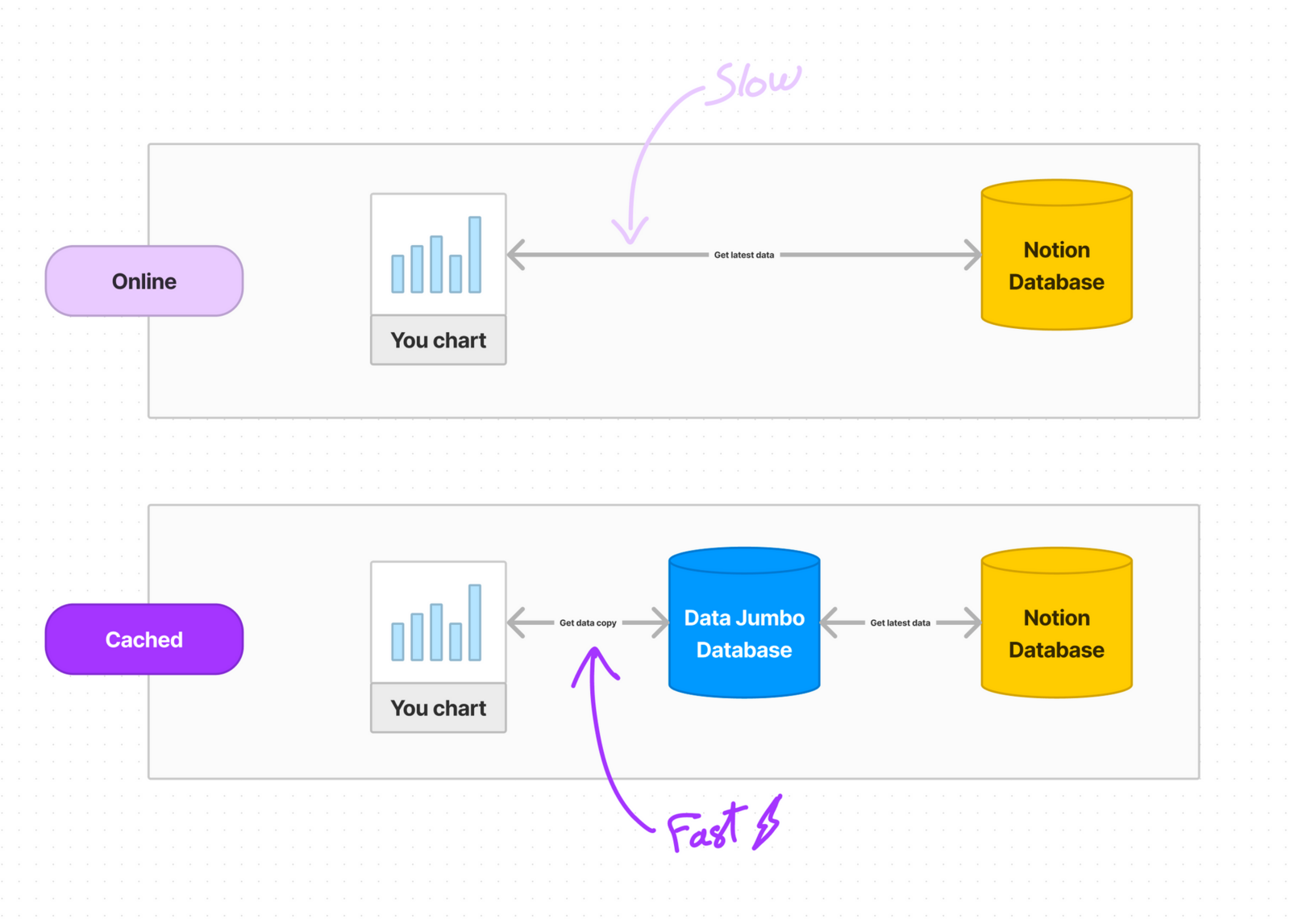
For charts under 500 rows, loading downloads the latest Notion data. However, performance degrades with more rows — charts with 5K+ rows may take up to 5 minutes.
Cached charts solve this by loading a secure server-stored data copy. This "copy" loads in seconds rather than minutes while remaining automatically updated, matching online chart behavior.
Why You Should Be Aware of That
Cached charts update when you modify rows in Notion, but cannot detect deletions due to Notion API limitations. Two solutions exist:
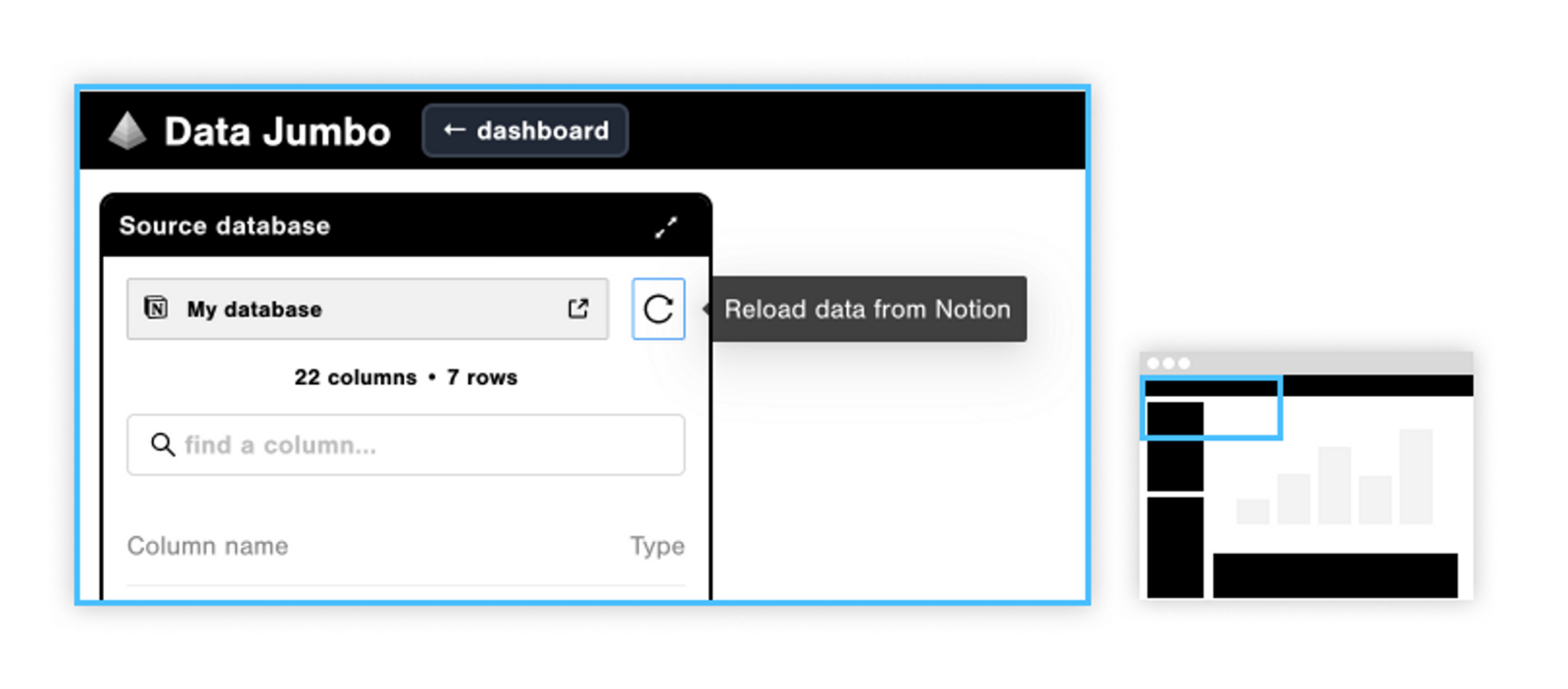
- Force full data reload via Data Jumbo chart editor > Source database > Reload button. Processing time approximates 1 minute per 1000 rows.
- Adopt best practices: create a select property (like "archived" status), filter hidden rows in Notion, then add a Data Jumbo filter excluding "deleted" status rows.