Filter Rows
How to filter rows?
Filters help you display only the rows you need by defining rules to hide others.
Examples:
- Keep only rows edited today or in the last 3 days
- Remove rows containing empty cells
- Use only rows with specific values
How to Create a Filter
You'll find filters in the bottom section of "Chart data"
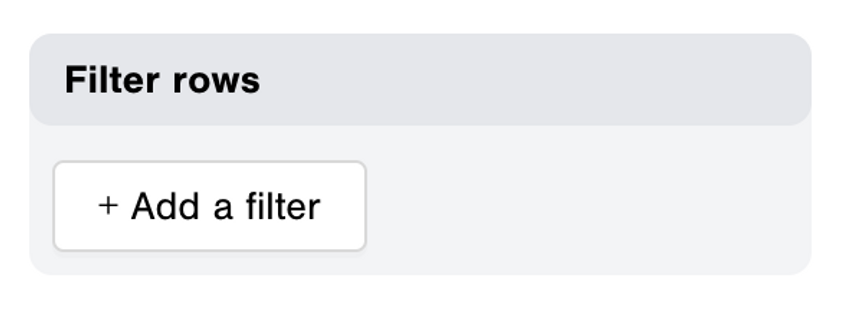
The filtering system hides rows based on defined rules.
Step 1: Select a column for filtering
Warning: Column type matters — different types offer different filter options. For example, only numeric or formula columns support "is over" filtering. Learn more about column types.
Available Filter Types
| Filter Name | Description |
|---|---|
| is empty | Cell is empty |
| is not empty | Cell contains a value |
| is equal to | Cell matches exact parameter |
| is not equal to | Cell differs from parameter |
| contains | Value includes the parameter |
| does not contain | Value excludes the parameter |
| is over | Strictly greater than parameter (numeric only) |
| is under | Strictly less than parameter (numeric only) |
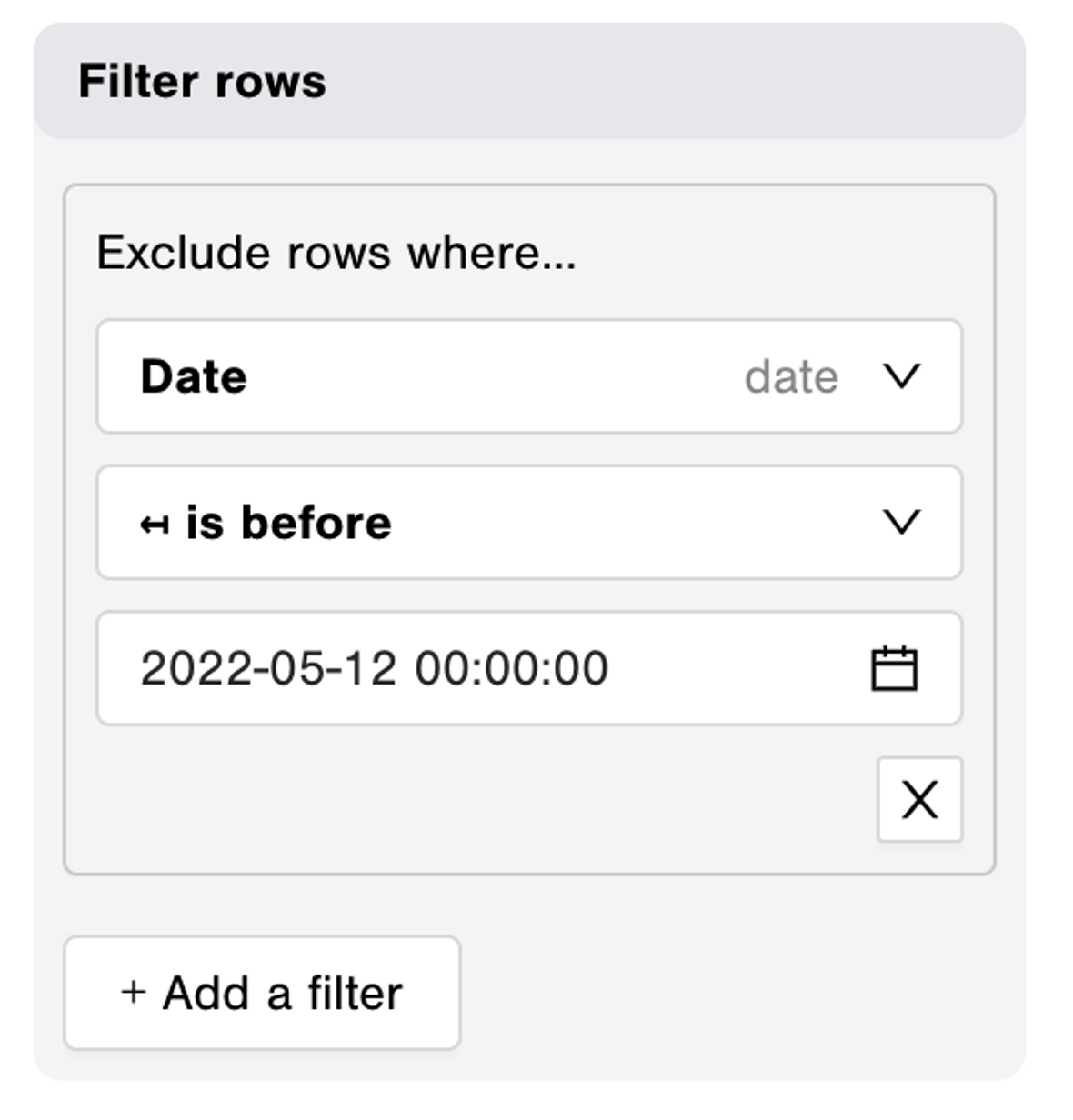
| is before | Date precedes parameter (date type only) |
| is after | Date follows parameter (date type only) |
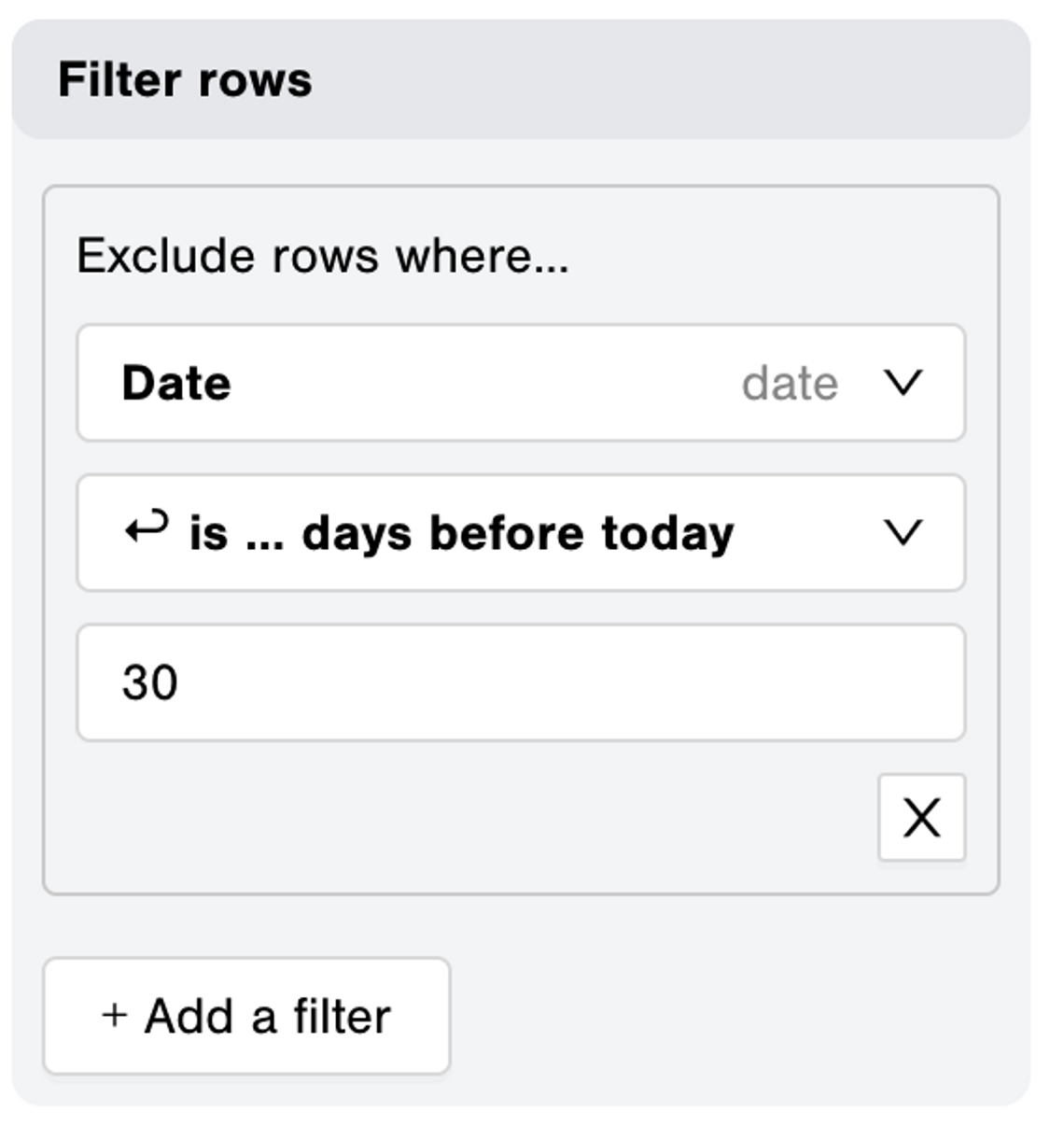
| is … days before | Date is N days before today (date type only) |
| is … days after | Date is N days after today (date type only) |
| is not current… | Date during current day, week, month, or year |
Important: Define the filter parameter (required for all except "is empty" and "is not empty")
Filter Logic Examples
Applying filters displays ALL rows EXCEPT those matching the criteria:
| Column Value | Filter | Parameter | Result |
|---|---|---|---|
| 10, 34, 12 | is over | 20 | 10, 12 |
| tomato, peas, chickpeas | contains | peas | tomato |
| 8 Oct 2021, 10 Dec 2021 | is before | 1 Dec 2021 | 10 Dec 2021 |
Example Use Cases
- Show rows where Date column is after May 12th 2022
Display only the last 30 days of data
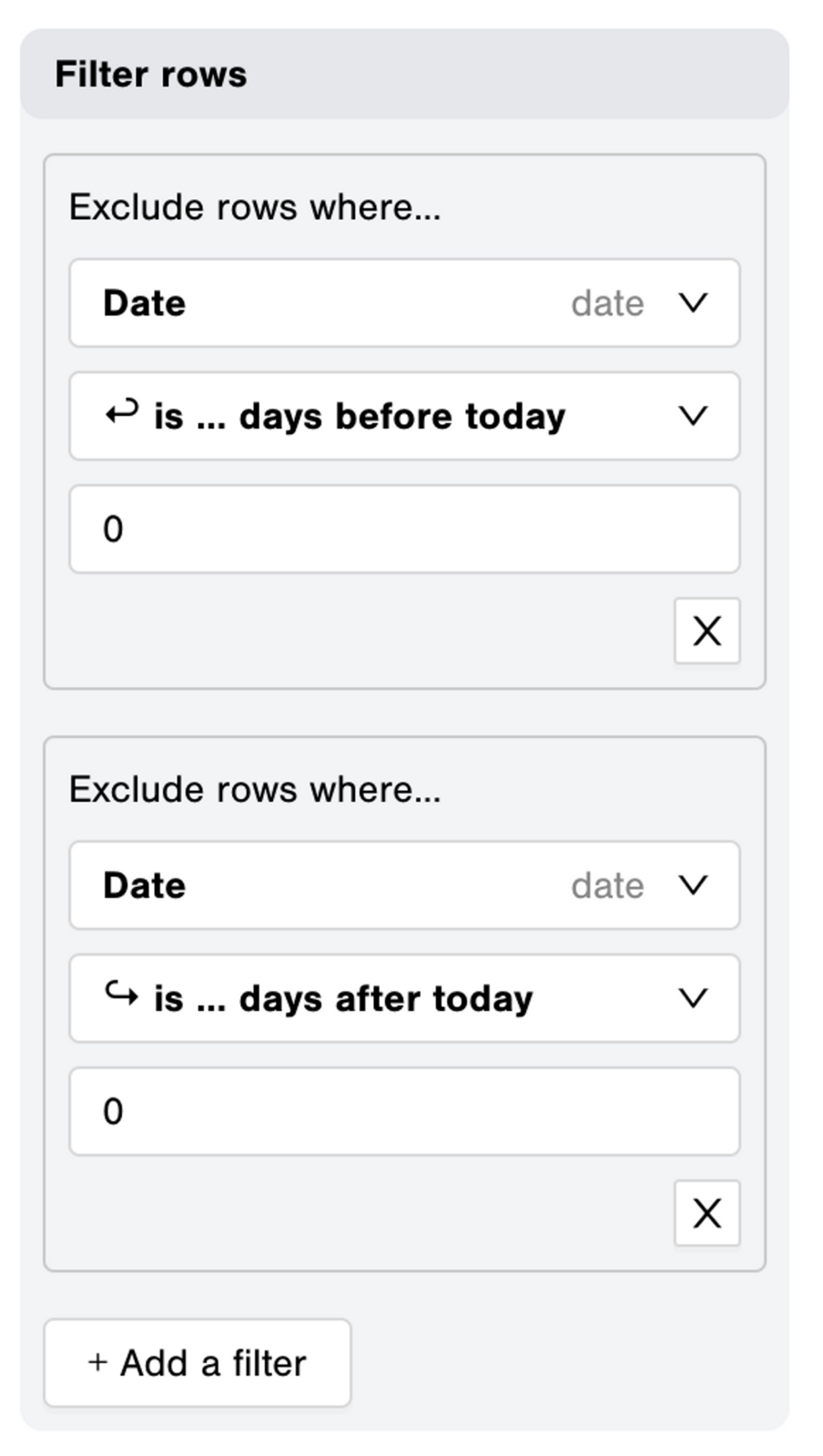
Show only today's records (updates daily)
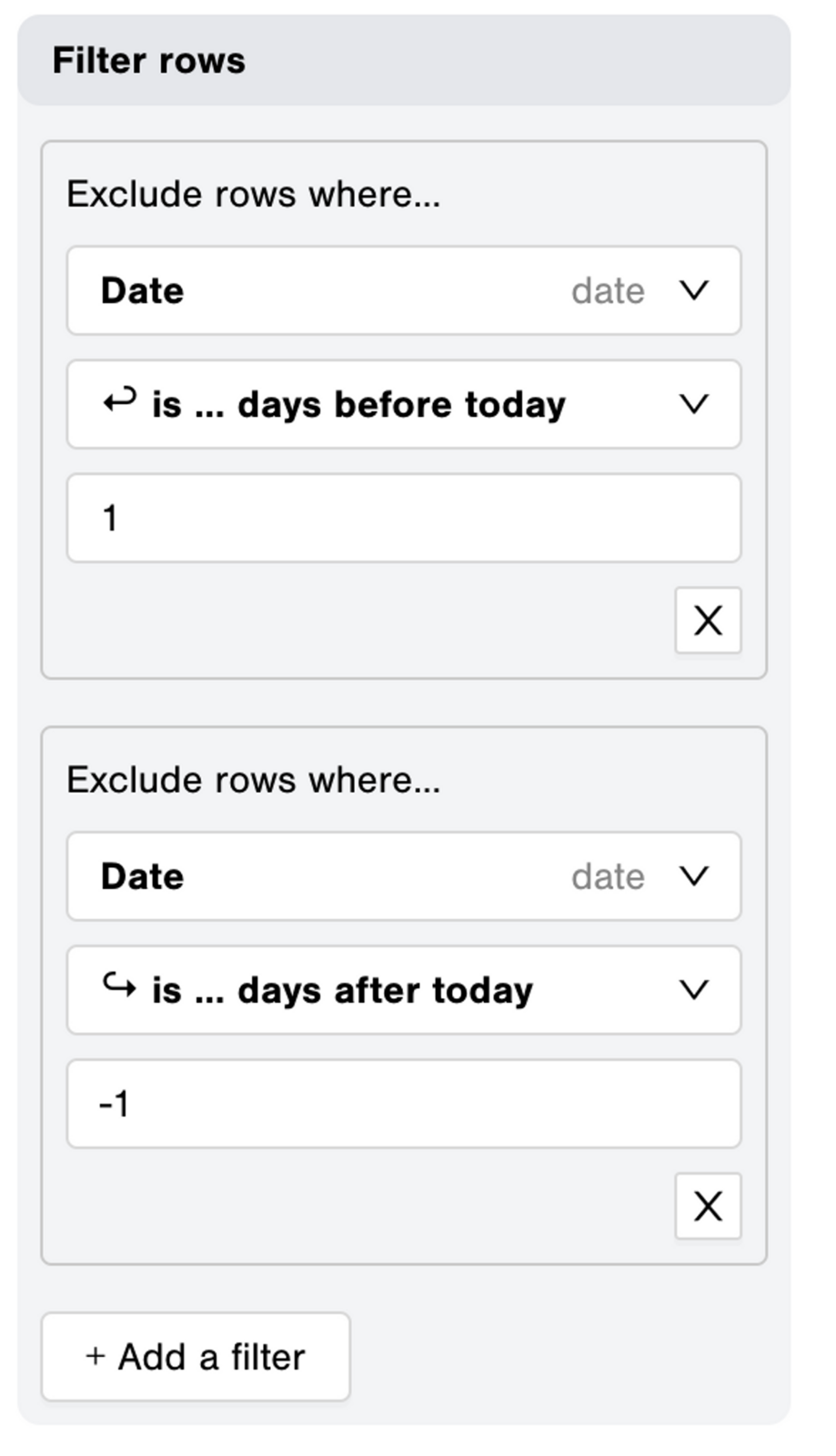
Show only yesterday's records
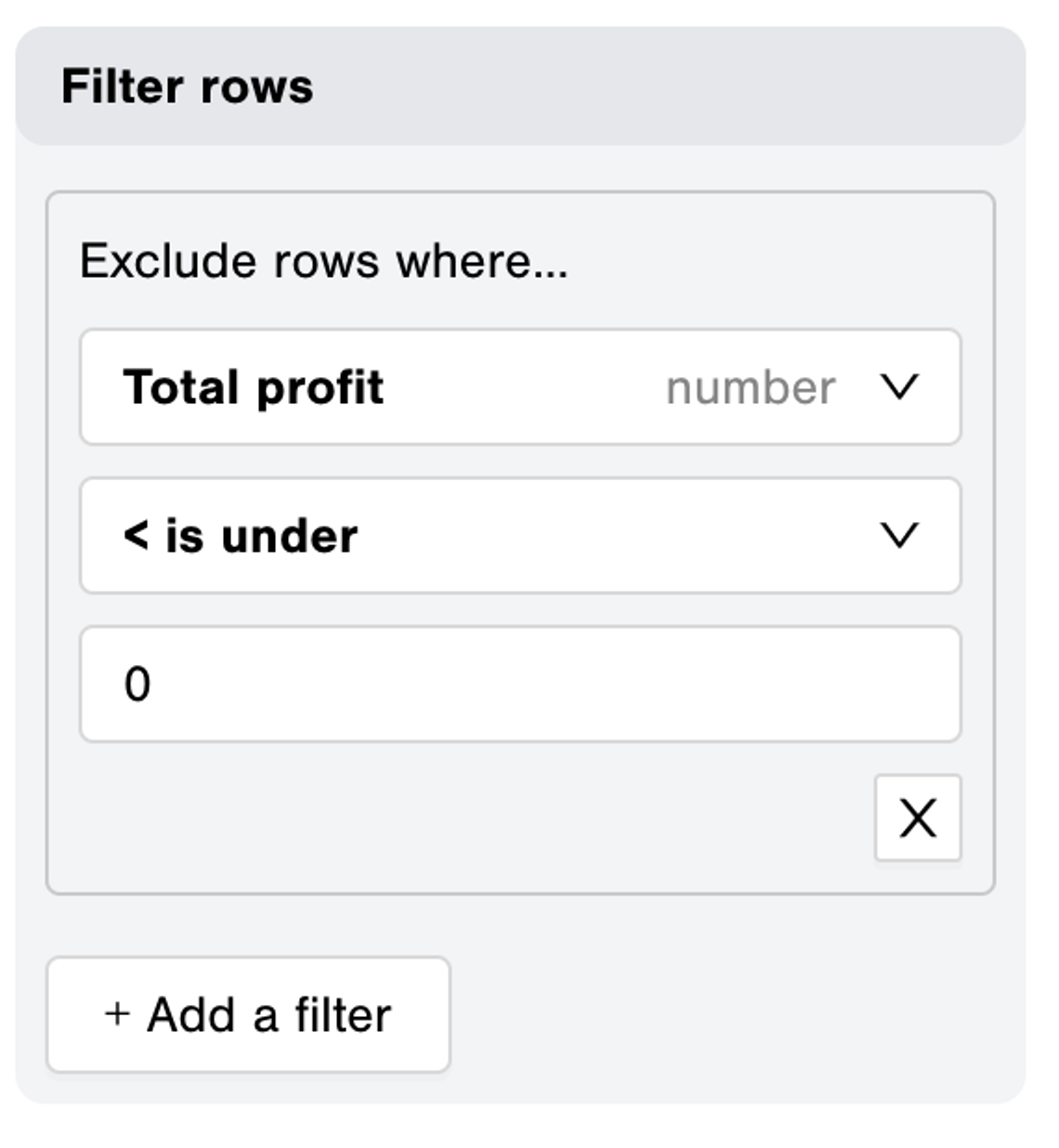
Keep only positive values
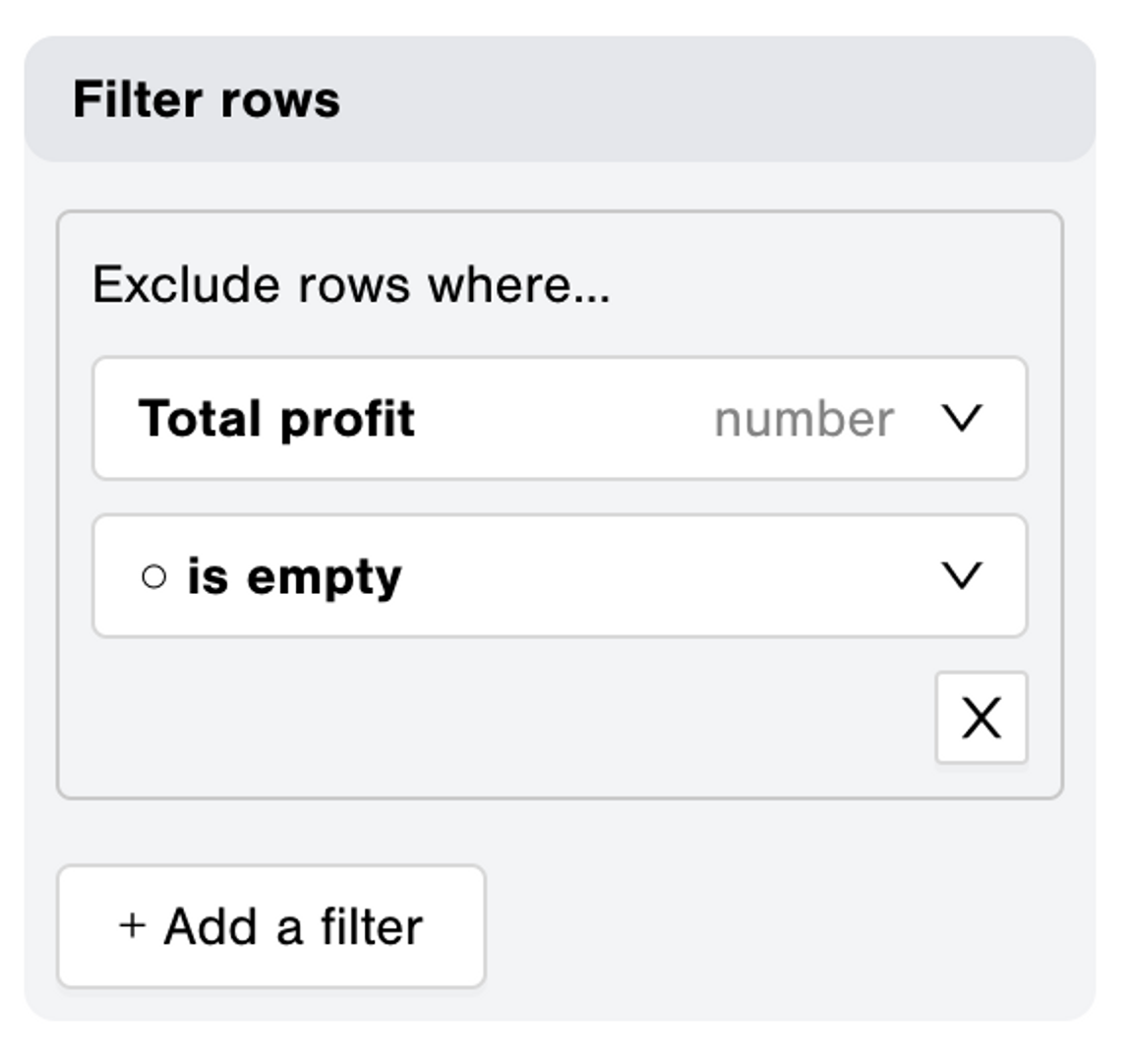
- Display only when "Total profit" field is filled
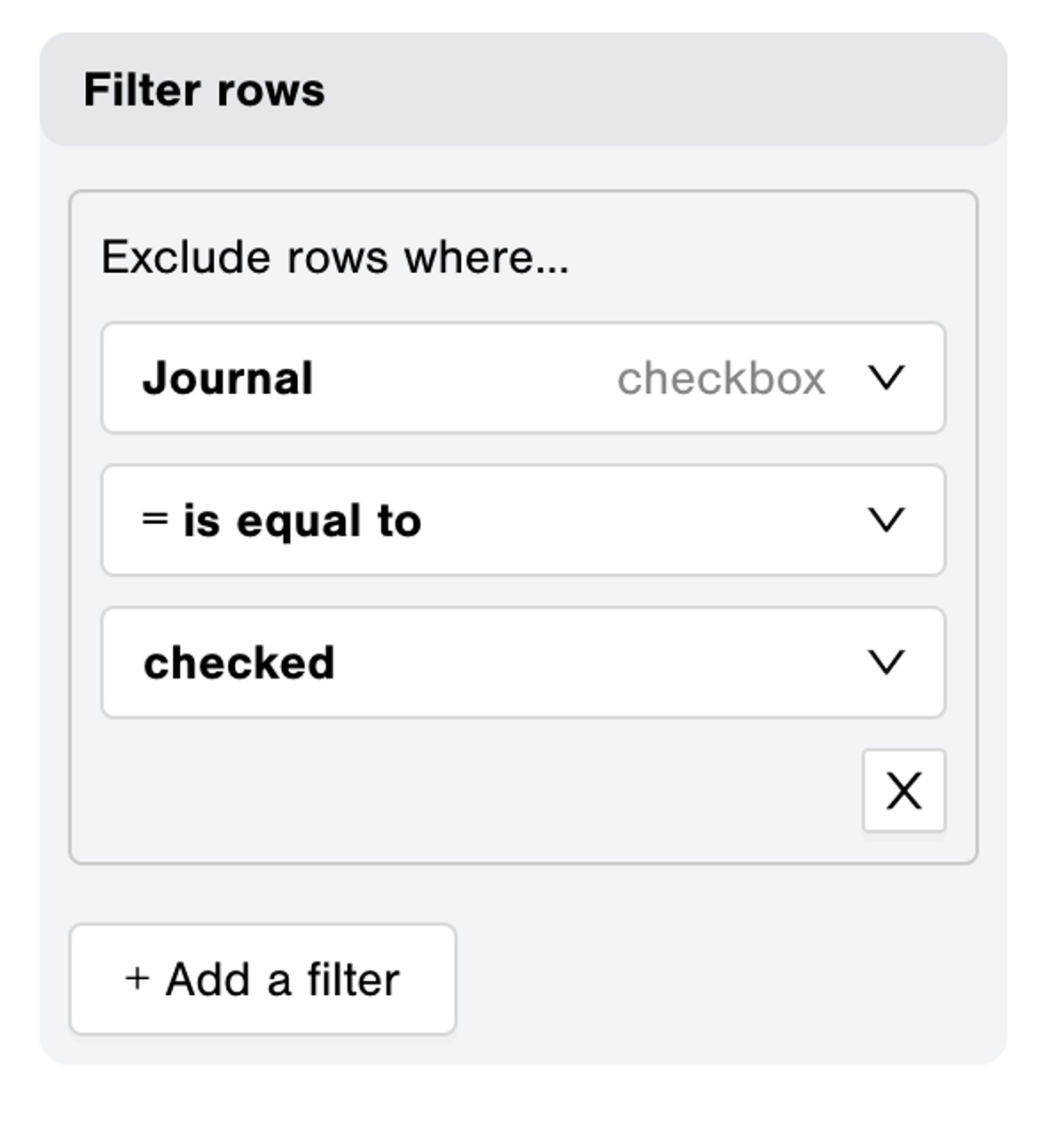
- Keep only rows where "Journal" checkbox is checked