Share a Database with Data Jumbo
How to share your database with Data Jumbo
If you don't find your database in the list of databases when you try to create a new chart, it's probably because it's not shared with Data Jumbo.
Warning: If you just added Data Jumbo as a connection for a document, but it does not appear in the Data Jumbo dashboard, you might have to wait a bit.
Know if you share a database with Data Jumbo
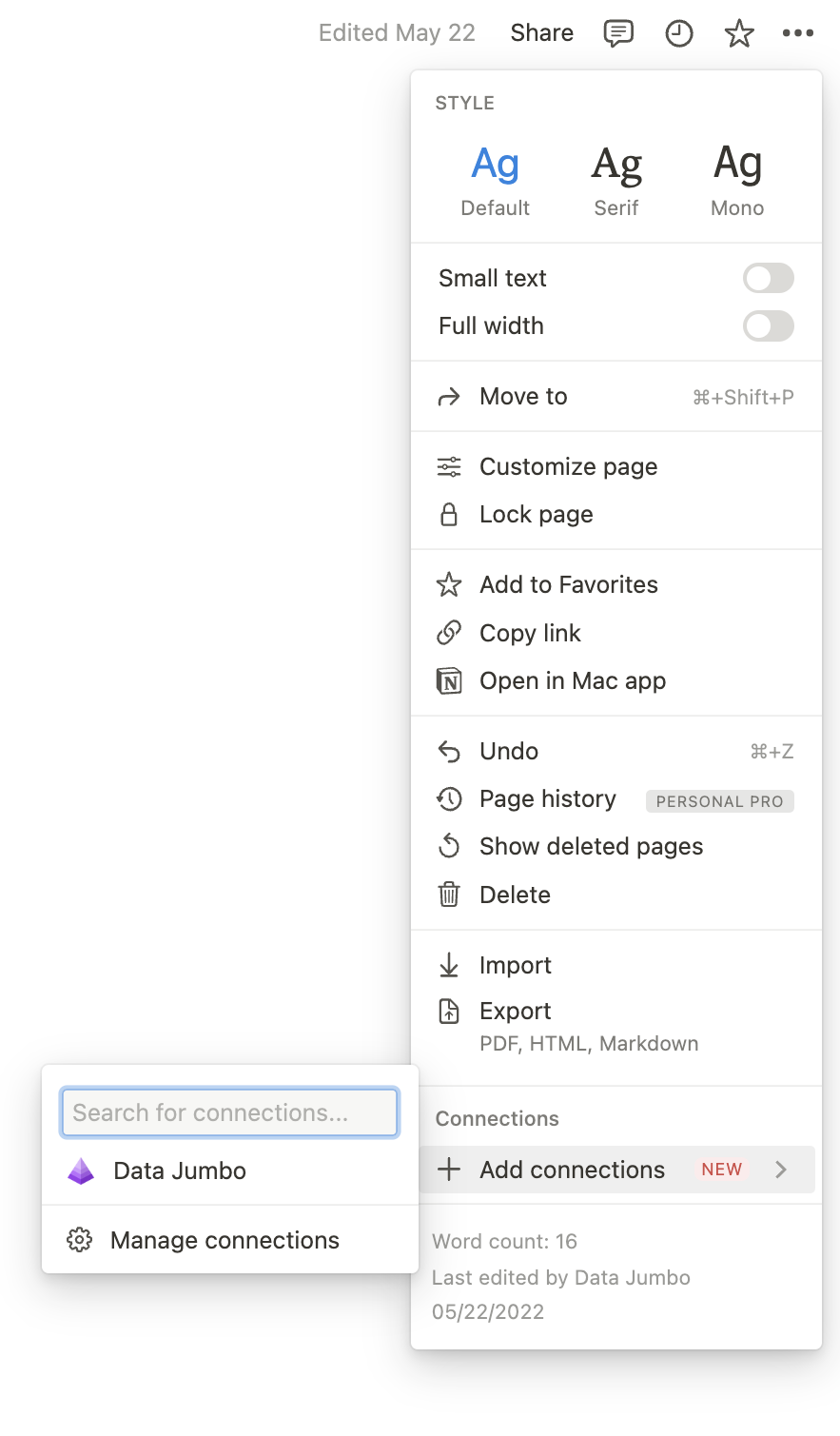
To know if you share a database with Data Jumbo, simply go to the page of your databases, and from the top right corner, click on the dots. If you don't find data-jumbo under the section "Connections", then that page and its subpages are not accessible from Data Jumbo.
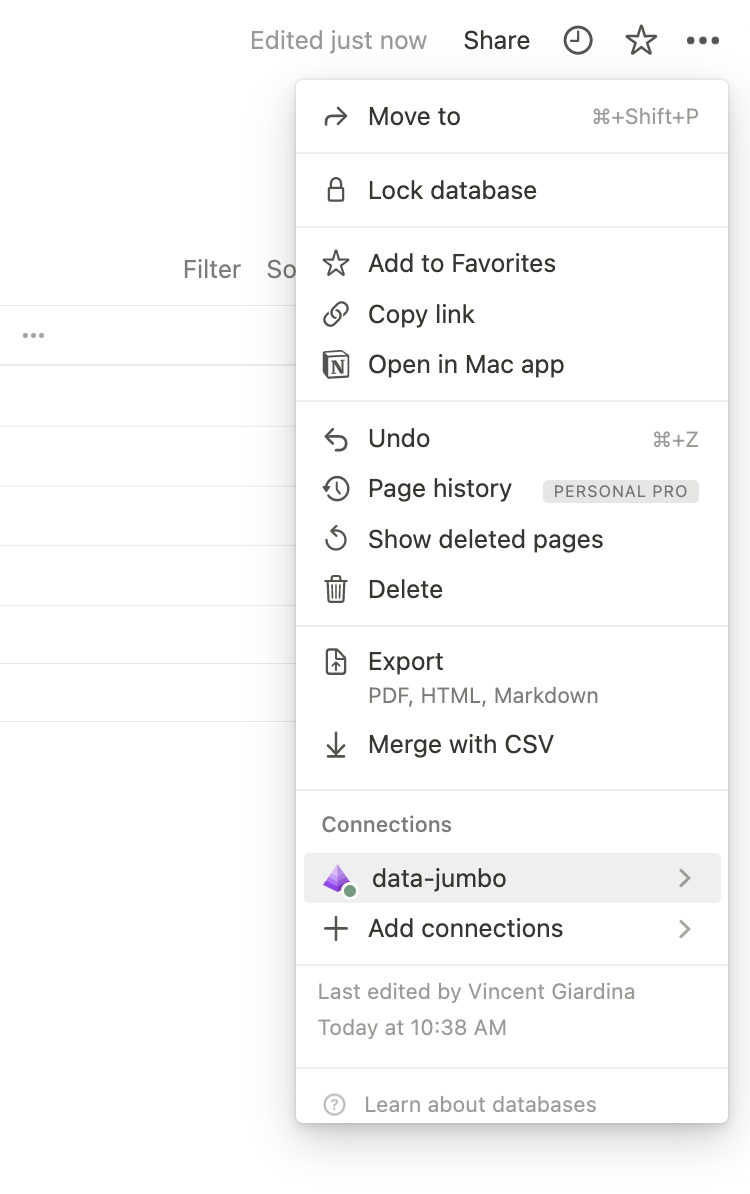
Share a database with Data Jumbo
1. Go to the original page of your database
2. Then click on the three dots located in the top right corner of your page. Go to + Add connections and simply add Data Jumbo from there.
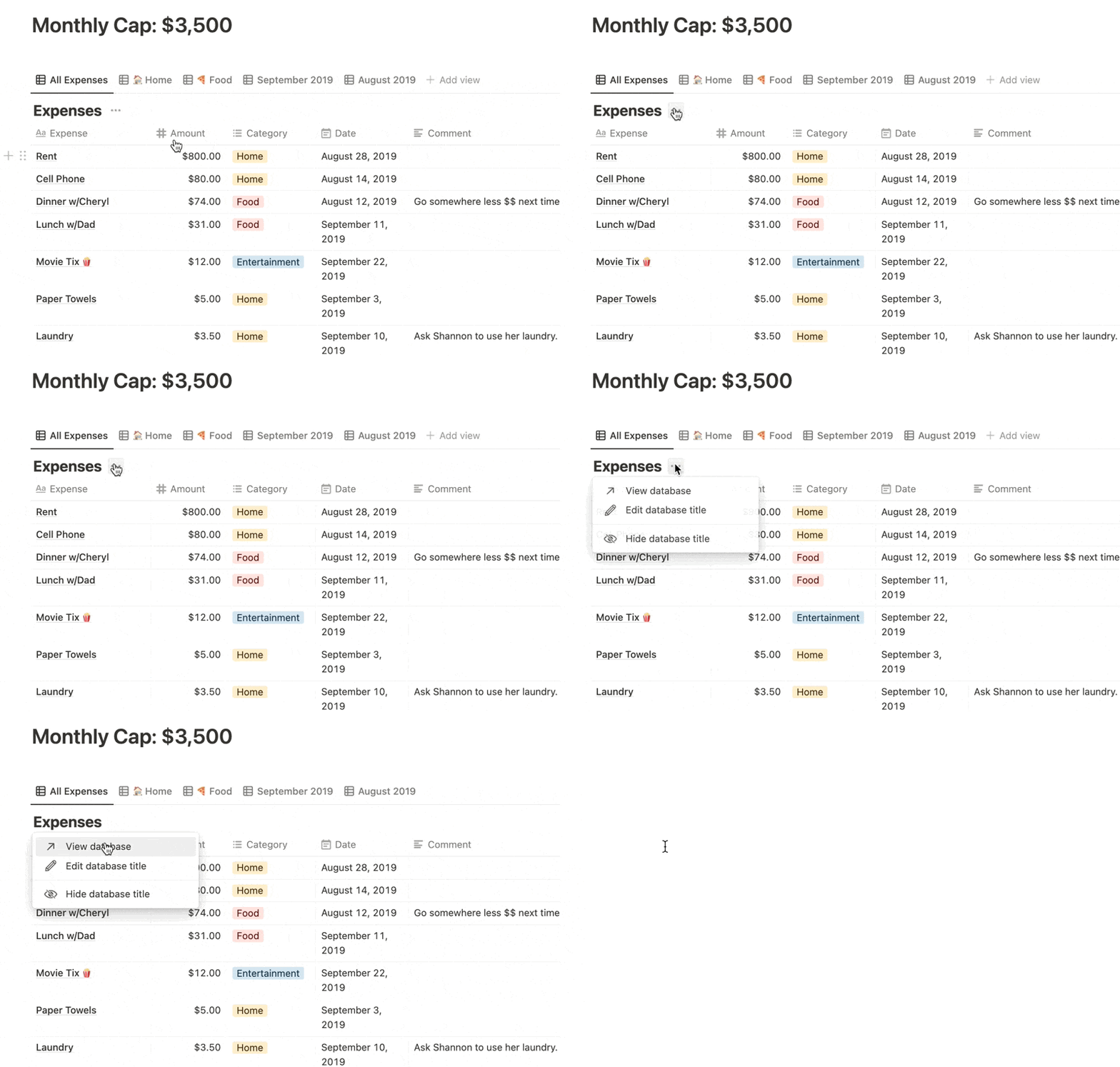
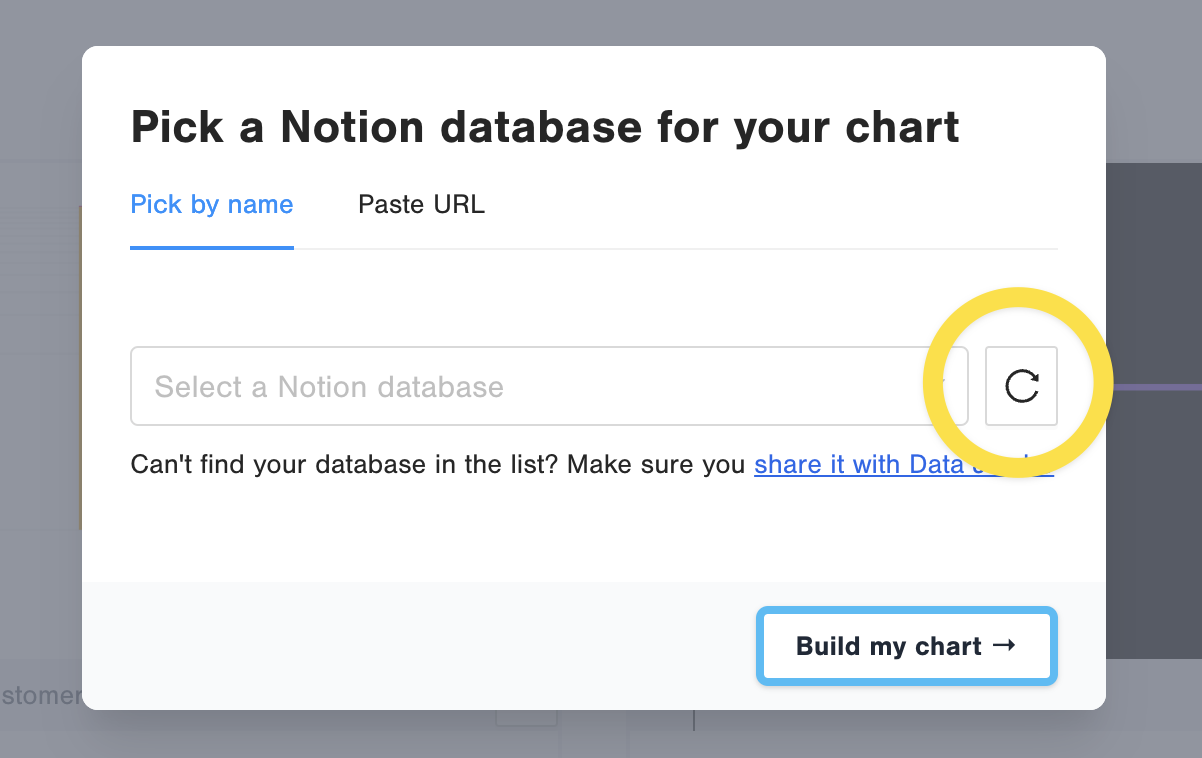
3. Finally, be sure to reload your list of databases from Data Jumbo. You should find your database in that list.
Find your database in Data Jumbo
Remember to refresh the list after sharing a database with Data Jumbo. Then you have 2 ways to find your database:
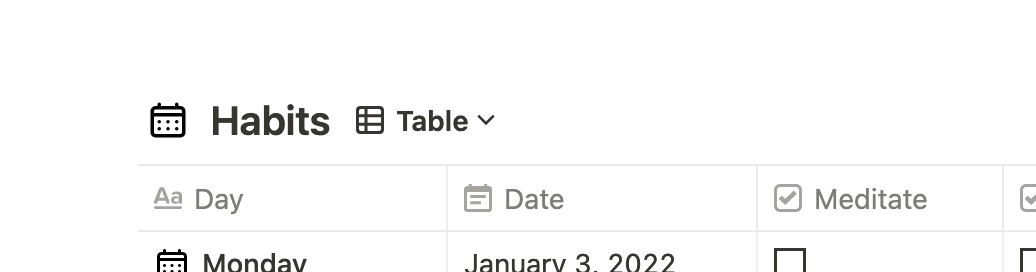
Option 1: Search the name of your database in the list "Select a Notion database" (Example: the table of this screenshot can be found in the Data Jumbo list as "Habits")
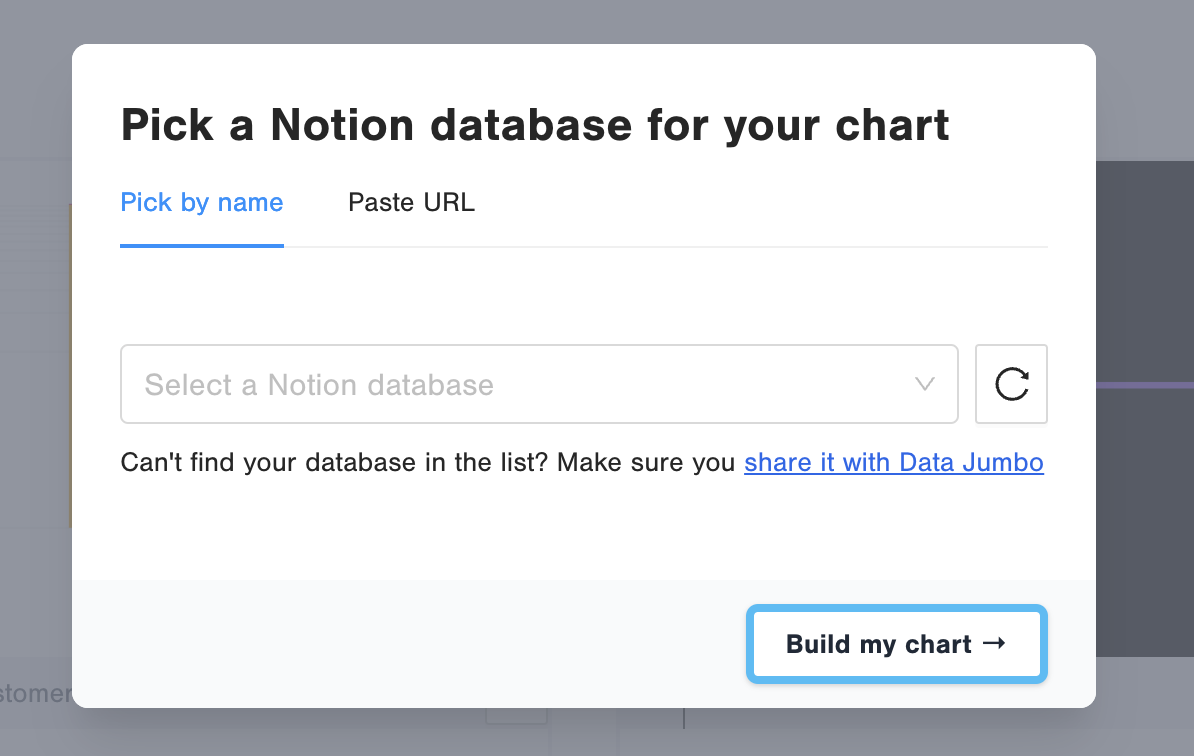
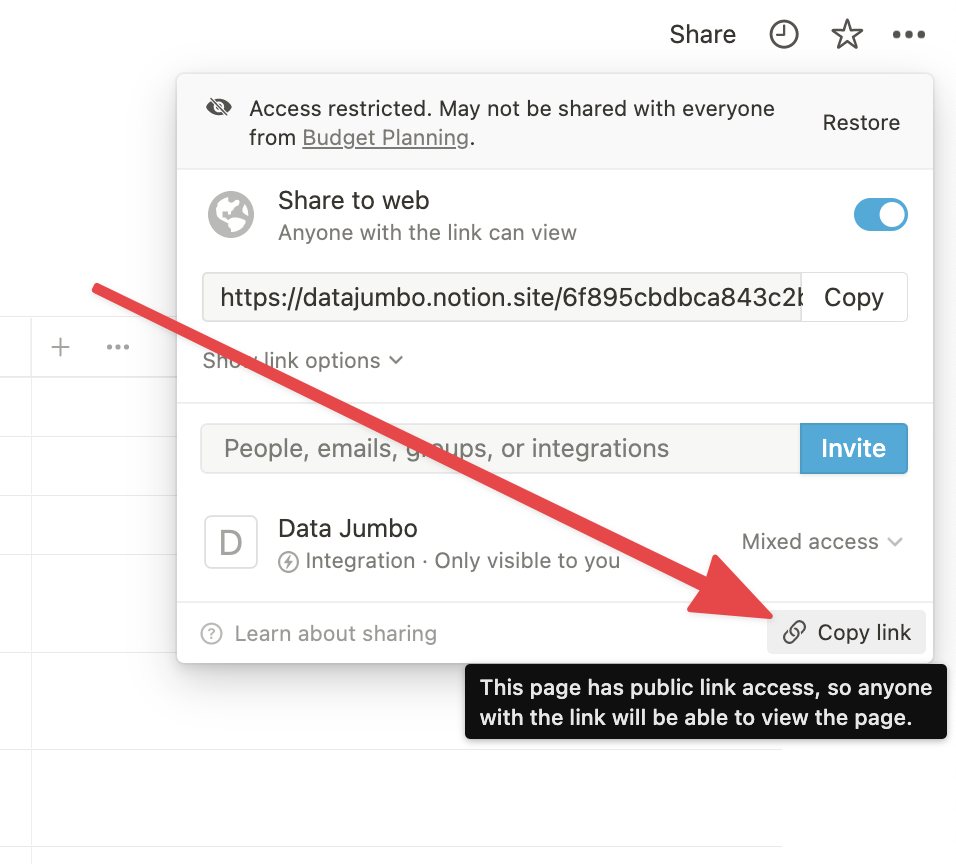
Option 2: OR just copy and paste the URL of your database